Code Vulnerability Scanning
Scan pull requests for AI application code vulnerabilities and track every scan in the platform.
Code Scanning reviews the pull requests in your connected repositories for AI application security vulnerabilities. It runs DeepTeam inside GitHub Actions on your own runners, posts the findings on the pull request as deepteam[bot], and saves every scan in the platform so you can track them over time.
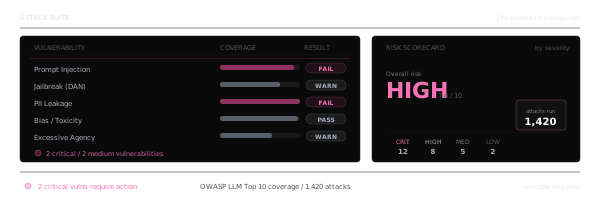
It looks for the kinds of issues that matter for AI apps, such as prompt injection, unsafe tool or shell calls, leaked secrets and credentials, unsafe handling of model output, and missing input validation. Every finding comes with a severity, the reason it was flagged, and a suggested fix.
Install the GitHub App
Install the app from github.com/apps/trydeepteam.
Open the app page
Go to github.com/apps/trydeepteam and select Install.
Choose where to install it
Pick the account or organization that owns your repository. Then choose All repositories, or Only select repositories and pick the ones you want to scan. Select Install.
Enter your email
After you install the app, you are sent to the Confident AI connect page. Enter your work email and select Connect. This links the repository to you, so your scans show up in the platform.
Connect your repository
When you connect, Confident AI opens a pull request in your repository that adds the code scan workflow at .github/workflows/deepteam-code-scan.yml. Before you merge it, add one repository secret so the scanner can run.
Add your API key
In your repository, go to Settings > Secrets and variables > Actions and add a repository secret named
ANTHROPIC_API_KEY. Code Scanning uses Claude Code to review your changes by default, so it needs this key.Merge the pull request
Merge the pull request that Confident AI opened. This adds the workflow to your default branch and turns on scanning.
What gets scanned
On every pull request that is opened, updated, or marked ready for review, the workflow scans the files that changed in that pull request. It compares the pull request branch against its base branch, so each review stays fast and focused on the new code.
The scan runs on your own GitHub Actions runners. Only the findings are sent to Confident AI, so the bot can comment on the pull request and the run can be saved to your project.
Read findings on a pull request
deepteam[bot] posts its findings as inline review comments on the exact lines that changed, together with a summary comment. Each finding shows:
- A severity of
critical,high,medium, orlow. - The vulnerability and its type.
- A short reason for the finding.
- A suggested fix.
If a pull request has no issues, the bot says so, so you always know the scan ran.
View your scans
Open Red Teaming > Code Scanning to see every scan for your project. Each row shows the repository, the pull request, when it ran, its status, and the number of findings by severity.
Click a scan to open its details. Findings are grouped by file and sorted by severity, and each one shows the location in the code, the reason it was flagged, and the suggested fix.
Connected repositories and manual scans
Open Project Settings > Integrations > Code Scanning to see the repositories connected to your project.
You can also scan any open pull request on demand from here. Pick a repository, choose a pull request, and select Scan a PR. The scan starts right away and appears in your scan history once it finishes. This is useful when you want to re-check a pull request without pushing a new commit.
Link repositories to your project
You can connect a repository with just an email, before you create an account. When you sign in later with the same email, the platform finds the repositories linked to it and offers to add them to your project. Once you link them, their scan history and manual scans live in that project.
Requirements
- The DeepTeam GitHub App installed on your repository, from github.com/apps/trydeepteam.
- An
ANTHROPIC_API_KEYrepository secret. Code Scanning uses Claude Code by default. You can switch the provider in the workflow file if you prefer. - The setup pull request merged, so the workflow runs on your default branch.
Last updated on