



Error Analysis
Discover failure patterns from your annotations and turn them into metrics that catch the same issues automatically.
Overview
Error Analysis turns the qualitative feedback your team leaves on annotation queue items — explanations, expected outputs, expected outcomes — into structured failure modes, then suggests a concrete metric for each one. Instead of reading hundreds of annotations to figure out what's going wrong, you get a short list of named patterns ("Hallucinated tool arguments", "Misinterpreted user intent", etc.) and, for each, a Create Metric / Use Existing Metric / Update Metric recommendation you can act on with one click.
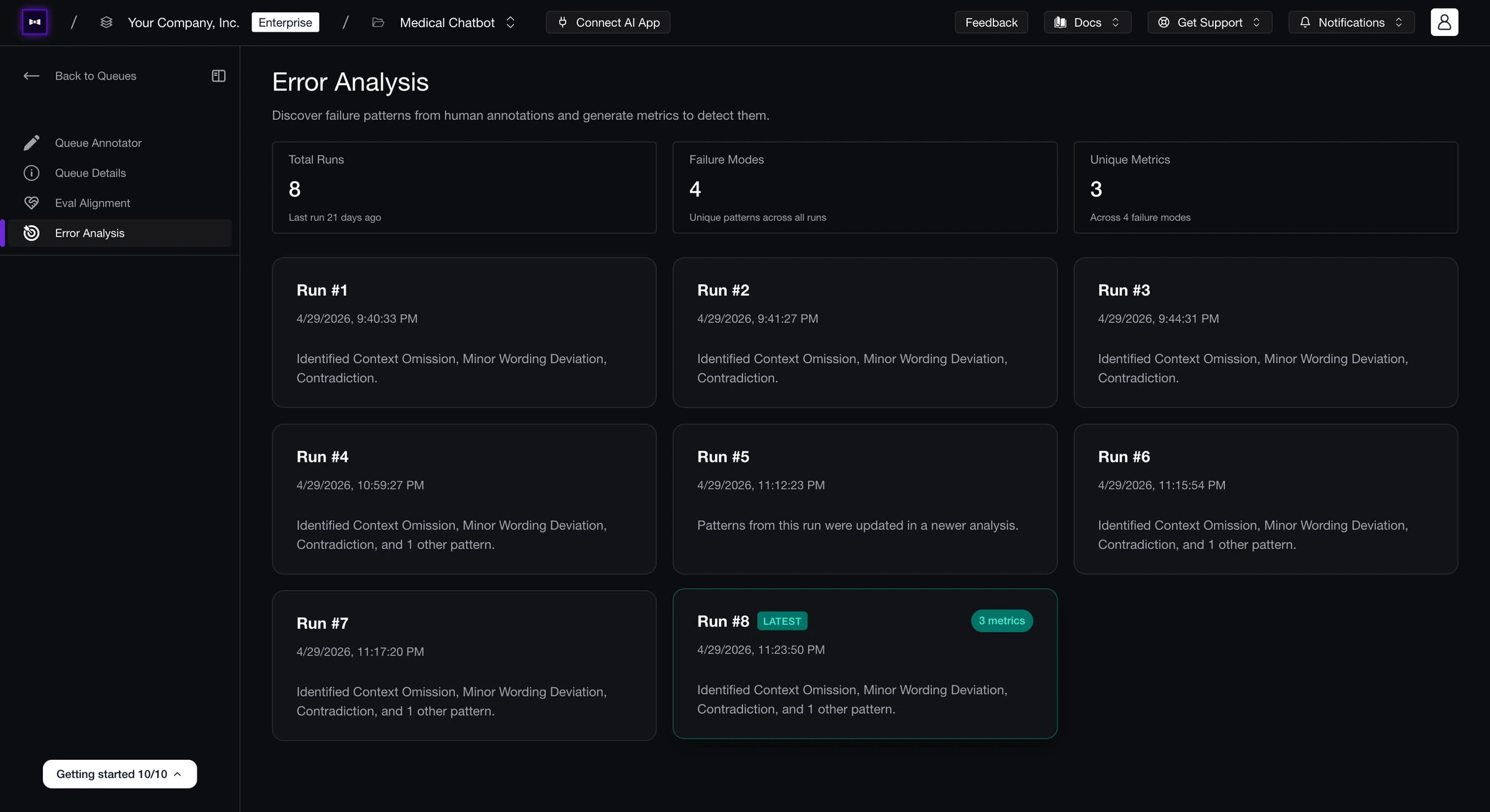
Open Error Analysis from the left rail of any annotation queue. The page lists every analysis run for that queue with a Latest badge on the most recent one, plus stats on total runs, total failure modes discovered, and unique metrics generated.
Eligibility
A run needs at least 10 completed annotations with evaluator feedback (i.e. an Explanation or an Expected output / Expected outcome) to produce meaningful patterns. Until you have 10, the page shows a guard:
More annotations needed — You have N completed annotations with evaluator feedback. At least 10 are required to run a meaningful error analysis.
Plain thumbs/stars without commentary don't count — the analysis needs the why.
How a Run Works
Click Run Analysis to kick off the pipeline. It runs in the background and progresses through three stages:
Categorizing
The model reads every eligible annotation and groups them into top-level failure modes — recurring patterns of what went wrong.
Generating sub-modes
Each failure mode is expanded with sub-modes: more specific manifestations, each tagged with a certainty (
HIGH,MODERATE, orLOW) so you know which patterns are well-evidenced versus speculative.Suggesting metrics
For every failure mode, the model proposes one of three actions:
- Create new metric — a brand-new metric (name, criteria, evaluation steps) tuned to detect this pattern.
- Use existing metric — one of your project's metrics already covers this pattern.
- Update existing metric — an existing metric is close, but its criteria or steps need tweaking.
Each suggestion gets a priority (
HIGH/MEDIUM/LOW) reflecting how strongly the data supports it.
When the pipeline finishes you're auto-routed to the run detail page below.
Reading a Run
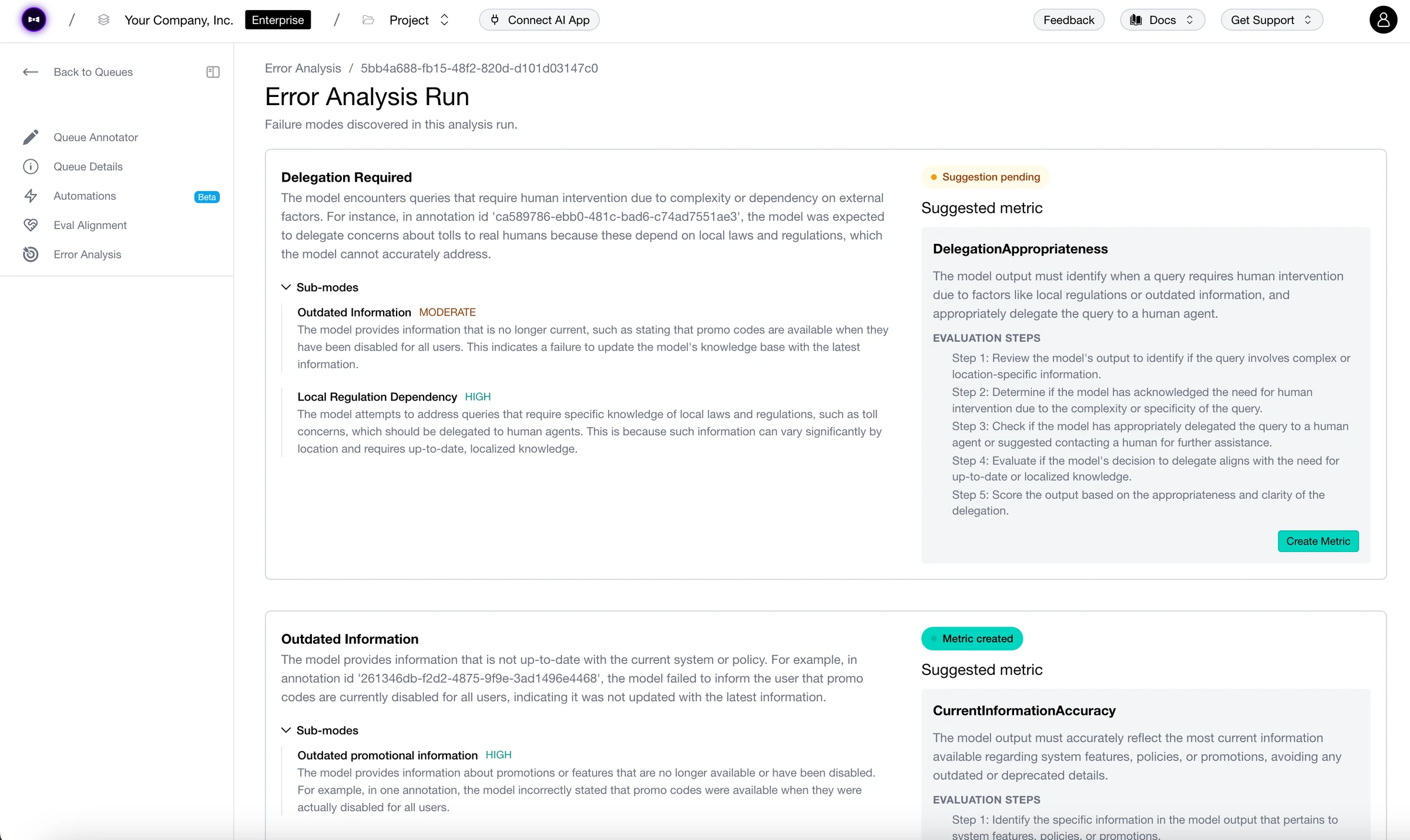
The run detail page lists every failure mode the analysis identified. Each card has:
- The failure mode name and description, plus a priority badge.
- Optional sub-modes — collapsible list of more specific patterns, each with its own description and a certainty pill.
- A metric suggestion card with the recommended action, the model's rationale, and the proposed metric details (name, criteria, evaluation steps for Create; the existing metric name for Use Existing; a "Proposed changes" diff for Update).
- An action button that does the right thing for that suggestion type:
| Suggestion type | Action button | What happens |
|---|---|---|
| Create | Create Metric | Opens the metric editor pre-filled with the suggested criteria. Save to link the metric to this mode. |
| Use Existing | Use This Metric | Links the failure mode to the recommended existing metric. View Metric opens it for inspection. |
| Update | Review & Update | Opens the existing metric in the editor with the proposed changes pre-applied for review. |
Once a failure mode is linked to a metric, the card flips to Metric created / Metric linked / Metric updated, and the action becomes View Metric — so you can re-open the metric without re-running the analysis.
Run Stats
Three stats at the top of a run summarize what was produced:
- Failure Modes — total patterns discovered, plus how many came with a metric suggestion.
- Metrics Linked — distinct metrics now linked to a failure mode in this run.
- High Priority — patterns flagged as high-priority by the model.
Suggestion History
If you've run the analysis multiple times, each failure mode keeps its suggestion history — older runs show the same pattern's previous recommendations behind a Suggestion N of M pager. Older entries are read-only and labelled Past suggestion so you don't accidentally act on stale advice.
Re-running
Click Run Analysis again whenever your team has added meaningful new annotations. Each run is independent — older runs stay in the history list — but failure modes and their linked metrics carry forward, so you accumulate a picture of how well your metric suite covers the issues humans have flagged.
Annotation Queues
Configure queues, assign reviewers, and feed them with auto-ingestion.
Eval Alignment
Compare your metrics' verdicts against human annotations.
Last updated on