



Trace & Thread Signals
Surface patterns, spikes, and label breakdowns across your traces and threads.
Overview
Signals are the runtime side of classifiers. Once a classifier is enabled, every matching trace or thread gets a label (or none), and those labels surface here as cards, breakdowns, occurrence rows, and trend findings — your at-a-glance view of "what's happening in production right now?"
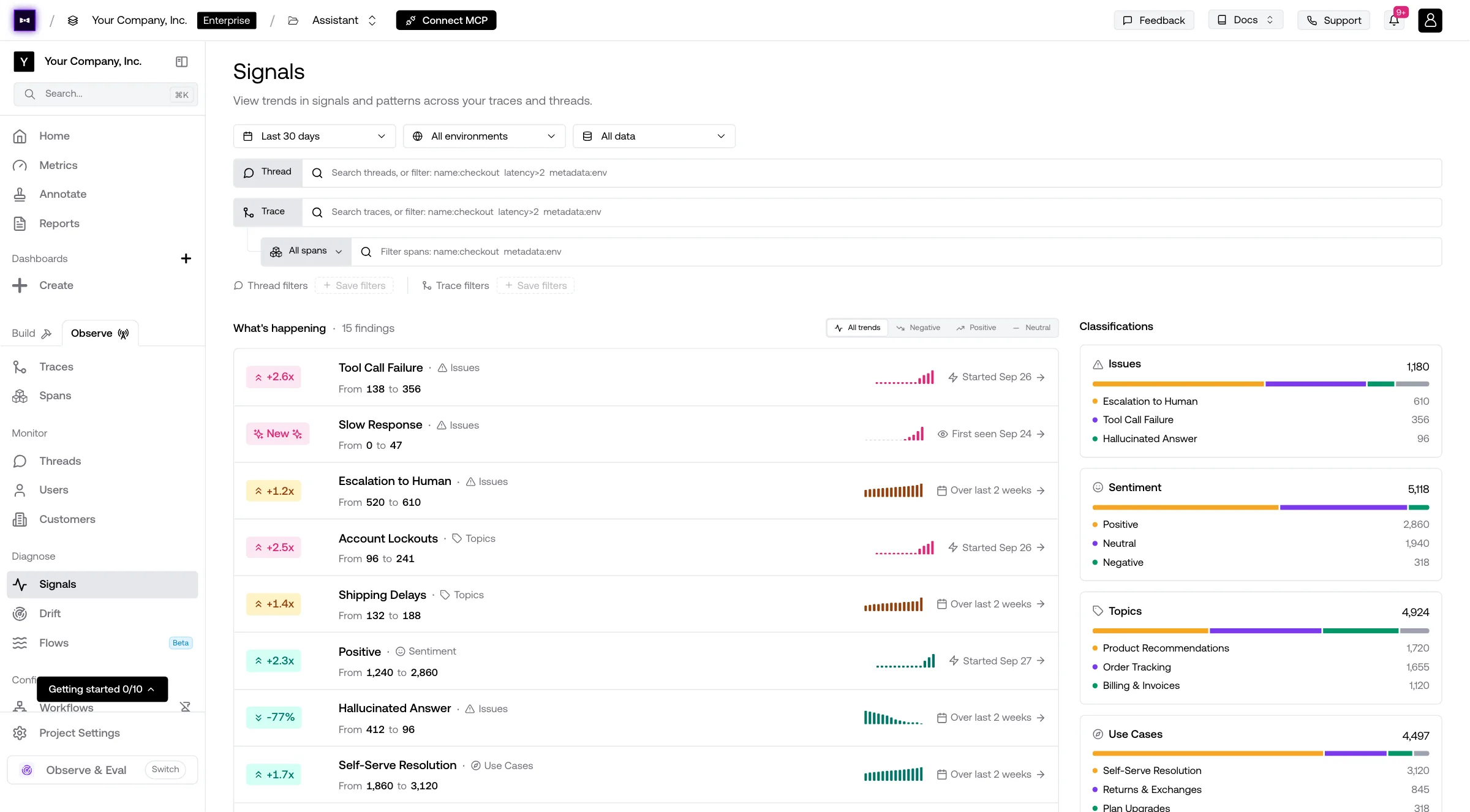
The Signals page has two main areas:
- What's happening — automatically detected spikes and trends across your classifier labels (e.g. "
RateLimitup 3.2x compared to the previous period"). - Classifications — one card per classifier showing the label distribution and counts in the selected time range, with drill-down into individual labels and occurrences.
Use the date picker and environment dropdown at the top to scope everything on the page.
Drill Into a Label
Click any classifier card to drop into the per-classifier detail view: each label's count, trend and a sparkline of occurrences over time. Click a label (here, or a finding under What's happening) to open its page: how many times it occurred, when it was first and last seen, whether it's ongoing or resolved, and the individual occurrences, each with the classifier's reason. The newest occurrence is selected, with a histogram of occurrences over time and its classifications beside the list.
Each occurrence links straight to the underlying trace or thread (View full trace or View full thread) so you can investigate why the LLM picked that label.
Filter the Observatory by Label
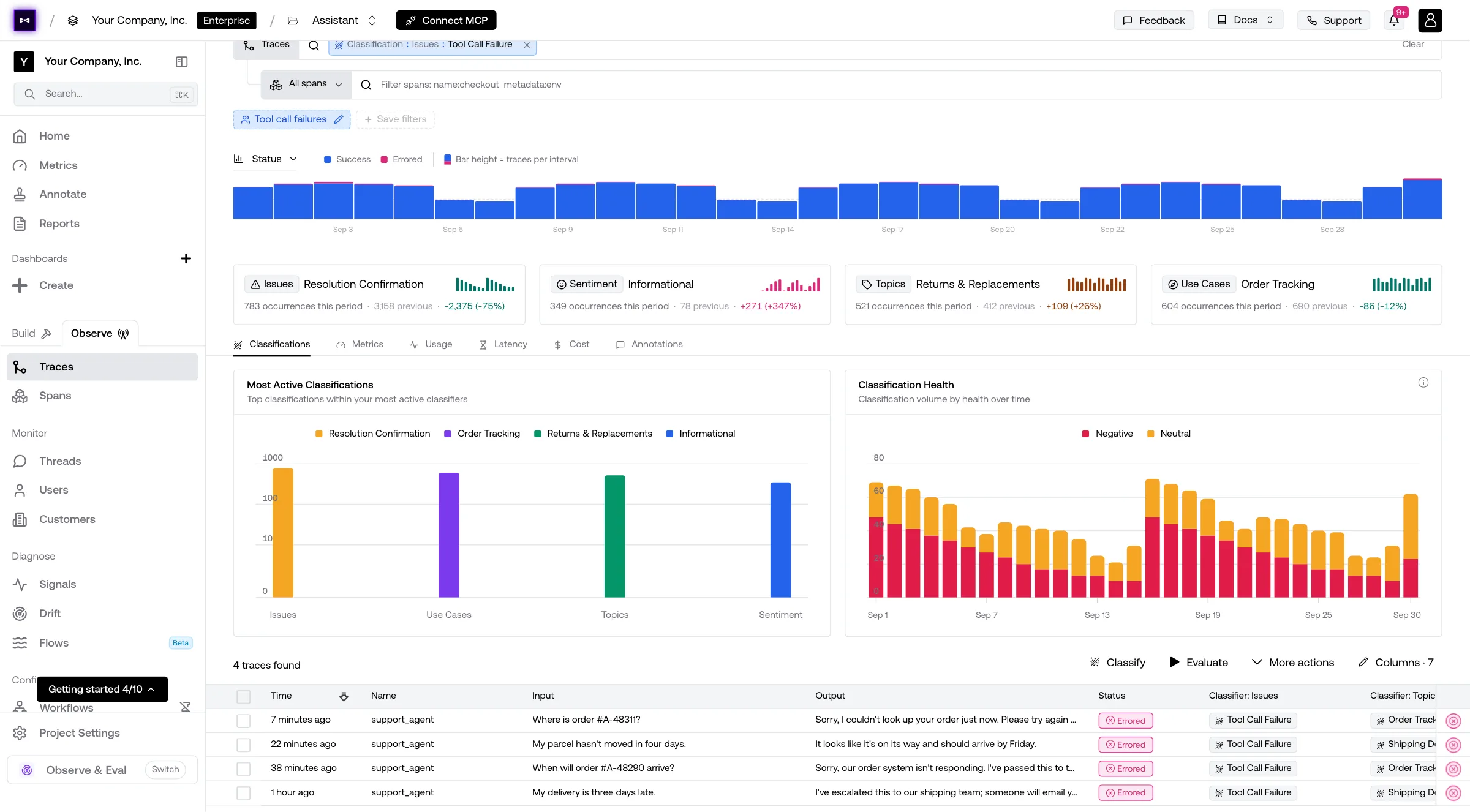
Anywhere classifiers run, you can filter the Observatory by classifier label to scope a search to just the data that matched. Pick the classifier and label from the filter dropdown; combine with other filters (environment, tag, metadata, latency, score, etc.) to narrow further, and save the filters as a view to apply them again in one click. Each classifier also gets a column in the table, showing the label every trace was given.
A Worked Example: Failure Mode + User Sentiment
Suppose you want to know "how often does an upstream model failure correlate with a user being unhappy in the same conversation?" — a question that touches both a trace-level dimension (the failure) and a thread-level dimension (the sentiment). The cleanest way to answer it is two cooperating classifiers: one trace-scoped, one thread-scoped.
Step 1 — A trace classifier for failure mode
Create a trace classifier called Failure Mode with this description:
Inspect each trace for technical errors. Use the error field, status codes in metadata, and any error text in the output. Pick the label that best fits.
Add four labels:
| Label | Description |
|---|---|
RateLimit | Trace failed because the upstream model returned a 429 or rate-limit error in the response or metadata. |
Timeout | Trace timed out — status code 504, timeout in error field, or latency above the configured ceiling with no output. |
BadRequest | Trace returned a 4xx error from the model that wasn't a rate limit (e.g. invalid request, missing fields). |
Unhandled | Trace error message indicates an unexpected exception in your application code. |
A trace that didn't fail simply gets no label — that's the "no match" outcome and is the expected default for happy-path traffic.
Step 2 — A thread classifier for sentiment
Create a thread classifier called User Sentiment with this description:
Read the user-side turns of the conversation. Decide whether the user expresses positive, negative, or neutral sentiment about the assistant's responses across the thread.
Add three labels: Positive, Negative, Neutral (each with one or two sentences describing what triggers it). Set a Time Limit of around 600 seconds so the classifier waits for the conversation to settle before grading sentiment.
Step 3 — Use the labels
Once both classifiers are enabled and have processed some data, you can pivot on the same dimensions across the platform:
- Signals page — both classifiers appear as cards. The "What's happening" section flags spikes like "
RateLimitup 3.2x" or "Negativesentiment doubled vs. the previous period." - Observatory traces — filter by
Failure Mode = Timeoutto inspect every trace that timed out in a window. - Observatory threads — filter by
User Sentiment = Negativeto inspect unhappy conversations end-to-end. - Combined investigation — start in threads filtered to
User Sentiment = Negative, then drop into one of those threads and look at how many of its traces are labeledFailure Mode = Timeout. That's the canonical "did our outages cause user frustration?" workflow. - Dashboards — graph trace count broken down by
Failure Modelabel, or thread count over time broken down byUser Sentiment. See Dashboards for setting up breakdown widgets.
What Classifiers Can Do
A few capabilities worth knowing:
- Multiple labels per classifier. A classifier can have any number of labels — each trace or thread is assigned at most one of them.
- "No match" is fine. The classifier doesn't force a label onto every item. Items that don't fit any label are simply not signaled.
- Sample rate. Each classifier respects the trace or thread sample rate set in Workflows → Classifiers, so you can tune classification overhead.
- Time limit (threads). Thread classifiers wait for a configurable idle window before evaluating, so you grade settled conversations instead of mid-flight ones.
Cost
Each classification logs a usage event for billing. See Project Settings → Data Usage under the Signals line for live usage and projected cost. Limits are gated by your org plan — Enterprise has no cap, but the line item is still visible.
Configure Classifiers
Create or edit the classifiers and labels that produce signals.
Dashboards
Trend a label's volume or break a metric down by classifier label on a dashboard.
Last updated on