



Annotation Queues
Learn about annotation queues, and how to assign items for team members to annotate
Overview
Confident AI allows internal, domain experts to leave annotations on traces, spans, threads and test cases in addition to automatic ingestion of user feedback via the Confident API. Reviewers answer an annotation form: thumbs and star ratings, choices, yes/no and free-text questions, plus an optional expected output and explanation.
You can either leave annotations as an:
- Ad-hoc standalone task, or
- As part of an annotation queue
Both of the two workflow gives you the same end-result.
Coordinating human review at scale?Keep annotation work organized as reviewers, queues, and datasets growBook a demoAnnotate as a Standalone Task
Leaving annotations as a standalone task is extremely simple: open any trace, span or thread from the Traces, Spans or Threads page (or a test case in a test run) and click Annotate. It opens the project's default annotation form, whose fields can be:
- A thumbs up/down or a 1-5 star rating
- A choice, a yes/no, a number, or free text
Each field takes an optional Explanation, and the form can ask for an:
- Expected output (traces and spans)
- Expected outcome (threads)
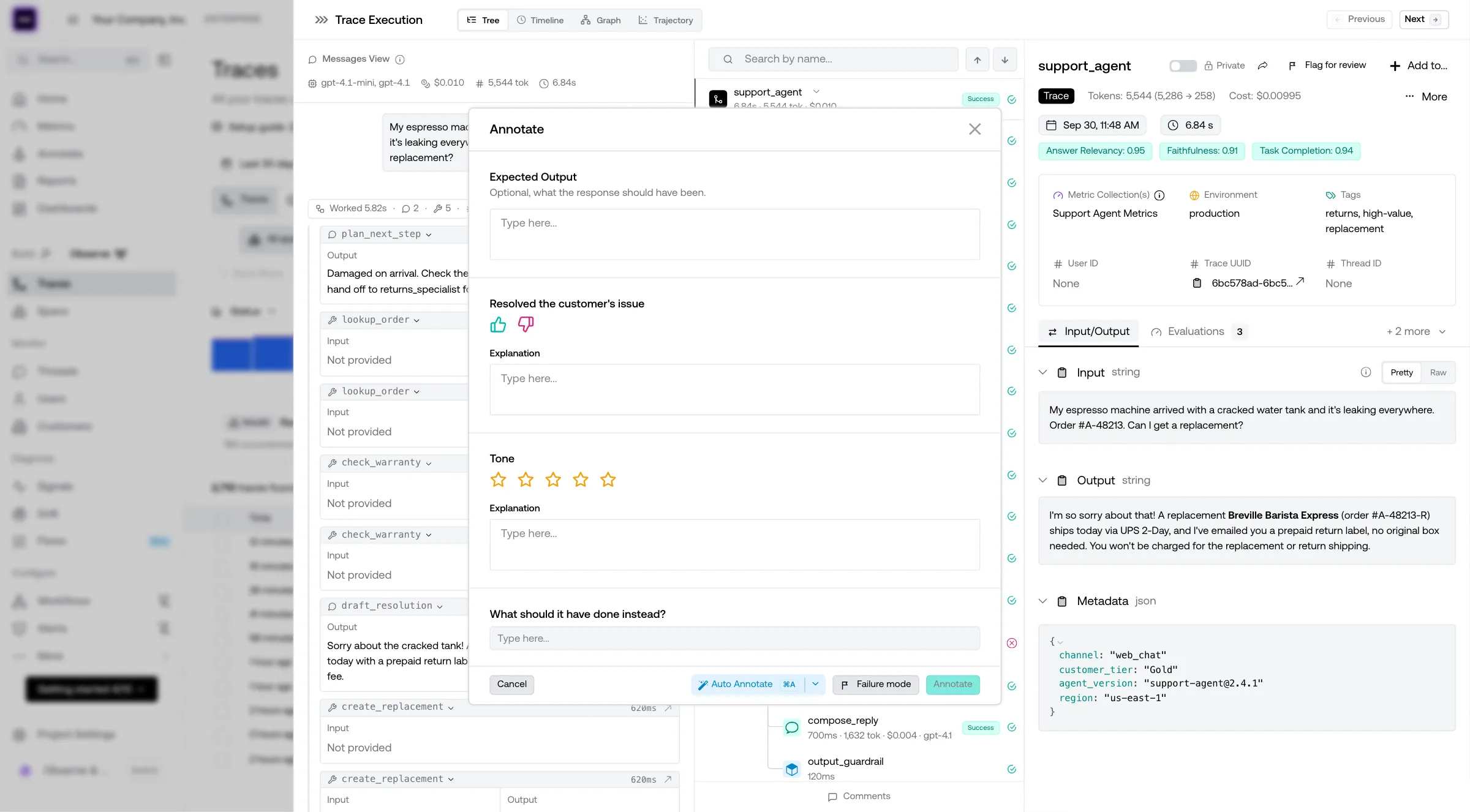
To understand the difference in traces/spans and thread annotations, read this section on single vs multi-turn annotations.
Using Annotation Queues
An often preferred way, especially for larger teams that require annotations from domain experts, is to use annotation queues for annotation.
Queues live under Annotate → Queues, one tab per type: Traces, Spans, Threads and Test Cases. A queue only holds its own type: you can't add threads to a queue meant for traces, and vice-versa. The list shows each queue's tags, completion and item count.
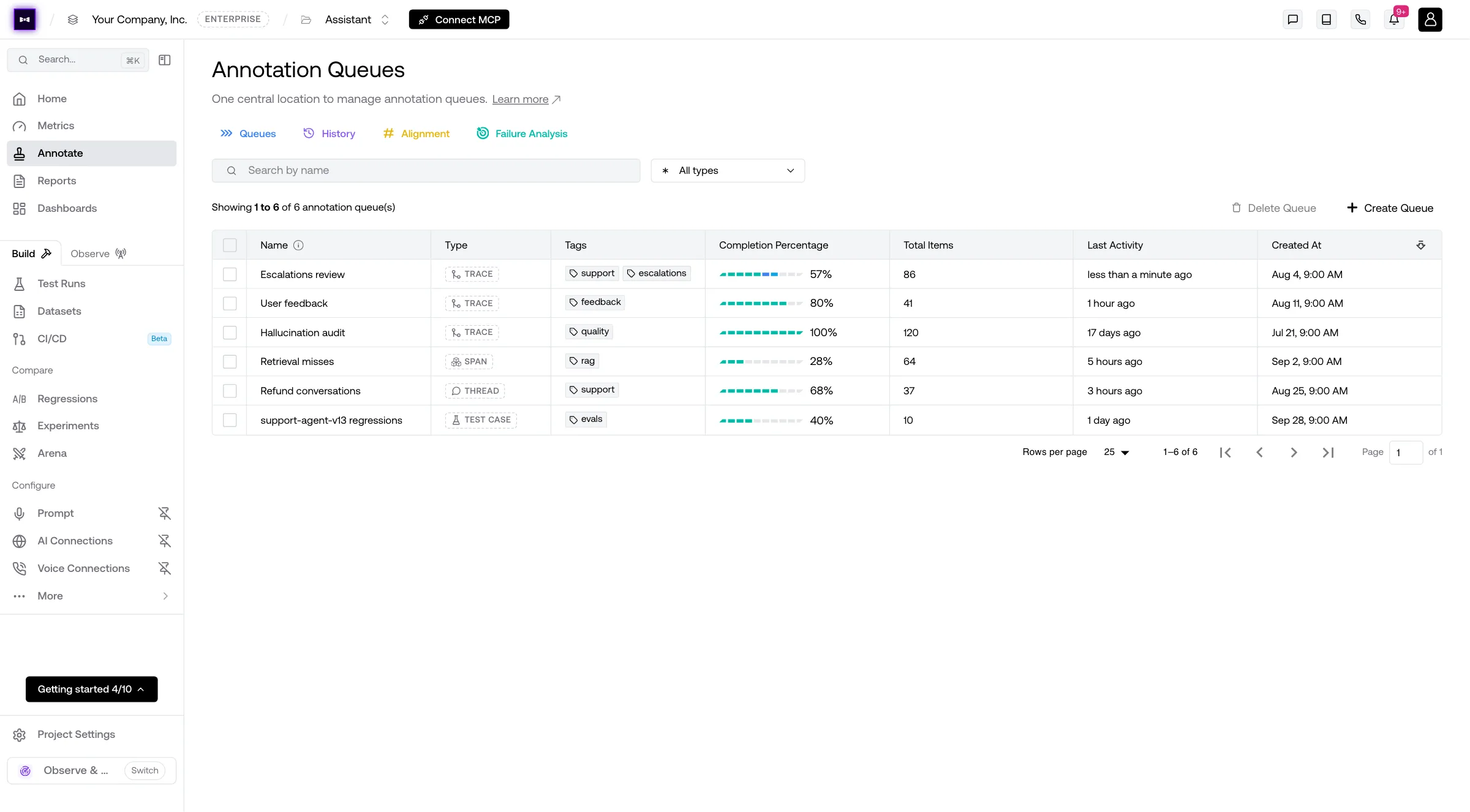
Create annotation queue
First create an annotation queue with Create Queue: give it a Name, pick its Queue Type, and choose the Form reviewers will fill in. In this entire example, we'll be showing an annotation queue for traces, but it's almost identical for spans, threads and test cases.
Create Annotation Queue Add items to queue
You can add traces, spans, and threads to an annotation queue literally whenever you see one of them on the platform. This mainly includes the Traces, Spans, and Threads pages, but also component-level testing reports where traces and spans are displayed, and test runs for test case queues. From a queue's Queue Details, Add traces (or spans, or threads) picks them without leaving the queue.
You can add to multiple queues at once, and even assign a team member to annotate the items you're queueing. Anyone you assign — at queue time or later from Queue Details — gets an in-app notification and an email summarizing what's been routed to them.
Add Traces to Queues Annotate queued items
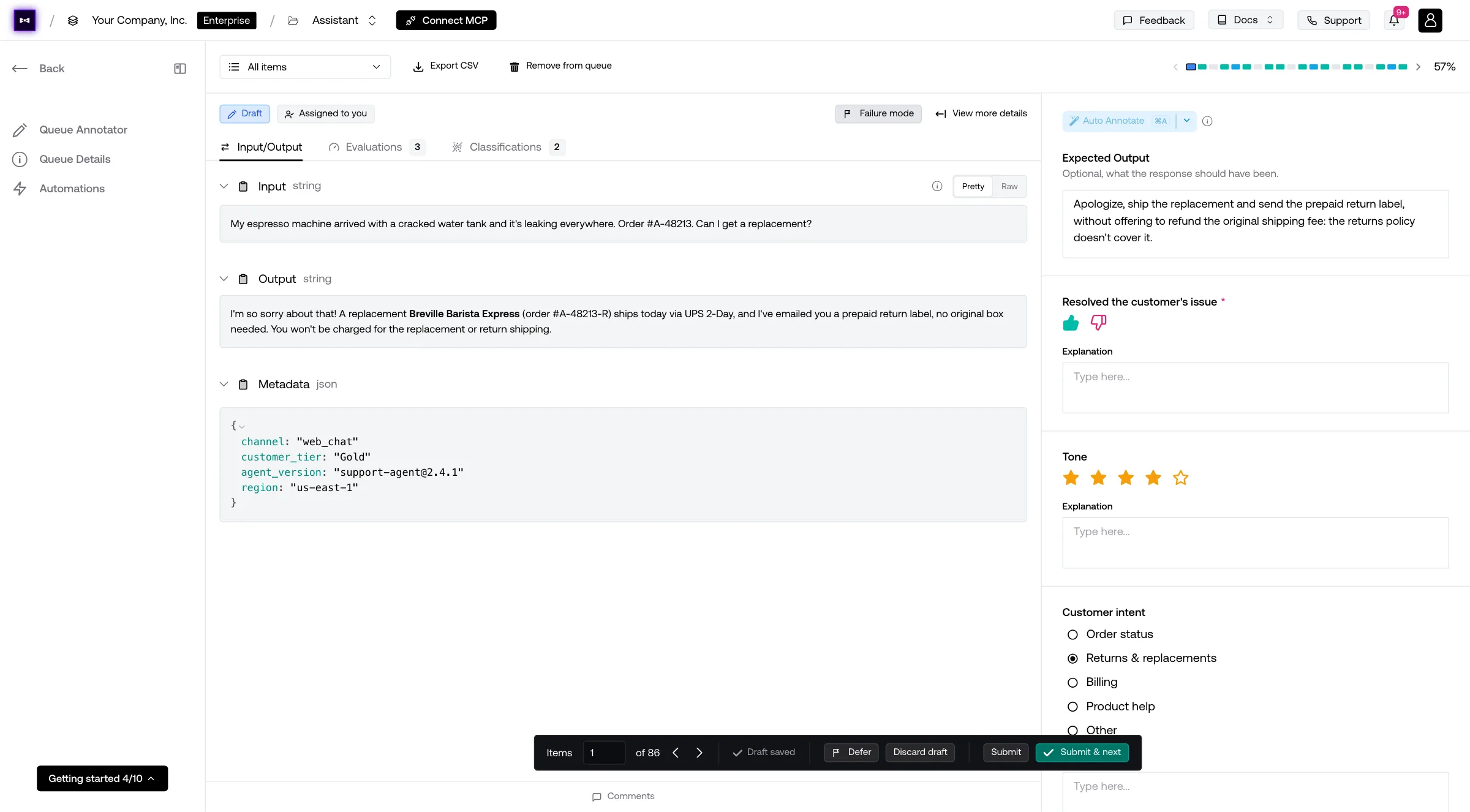
Open a queue to land on its Queue Annotator: one item at a time, with the queue's form beside it.
The Queue Annotator You'll have the option to:
- Track completion progress across the queue's items, and jump between them
- Filter for items that are in progress, drafts, deferred, completed, or assigned to you
- Tag the item with a Failure mode, use Auto Annotate to draft the form with AI, and View more details of the trace, span, thread or test case
- Export CSV or Remove from queue
The item shows its Input/Output, and its Evaluations and Classifications, where you can validate a metric result or label. Your answers save as a draft as you go (Draft saved), so you can leave and come back. At the bottom, Submit marks the item completed (Submit & next moves on), Defer sets it aside, and Discard draft starts over.
Annotate Queued Traces Track progress
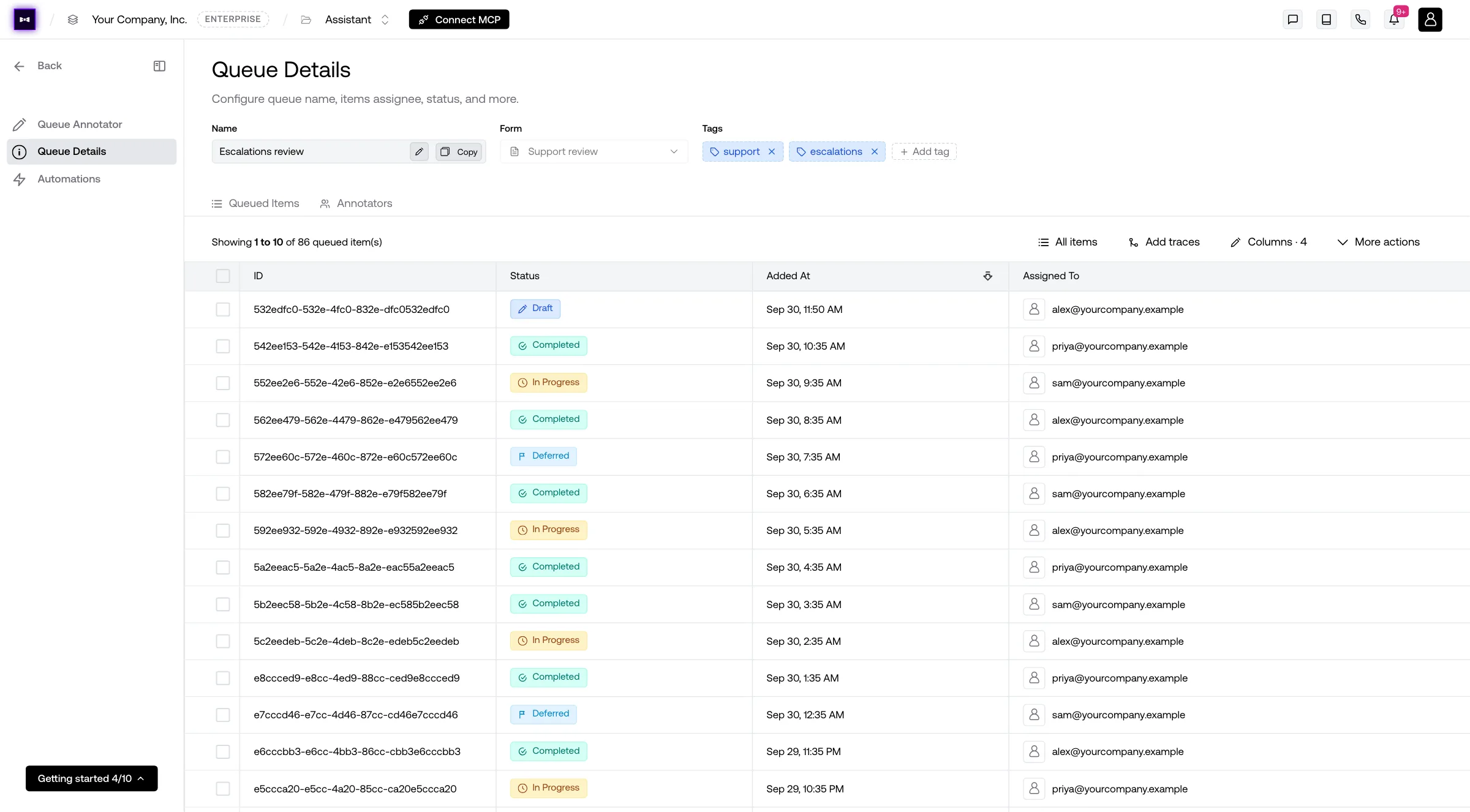
Once you're done, go to Queue Details to see an overview of all completed and in progress items. Its Annotators tab shows each reviewer's annotations, assigned items and items remaining.
Manage Queued Items
For items that you've queued for annotation, you can always manage them from Queue Details → Queued Items: tick items, then use More actions to assign or unassign them, mark them in progress, deferred or complete, remove them from the queue, add them to a dataset, or evaluate them.
Tag Annotation Queues
Use tags to organize your queues, for example by team or review cycle. Tags show in the Tags column of the queues list and at the top of Queue Details.
- From the list — click a queue's tags cell, then check existing tags or type a new one and press Enter. Changes save when the dropdown closes.
- From Queue Details — click Add tag, type a name, and press Enter. Click × on a tag to remove it.
The SDK and API also accept tags
when you create or update a queue. On update, the list you send replaces the
queue's tags.
Export as CSV
From Queue Details → Queued Items, open More actions → Export as CSV to download the queue's items and their annotations (or click Export CSV in the Queue Annotator).
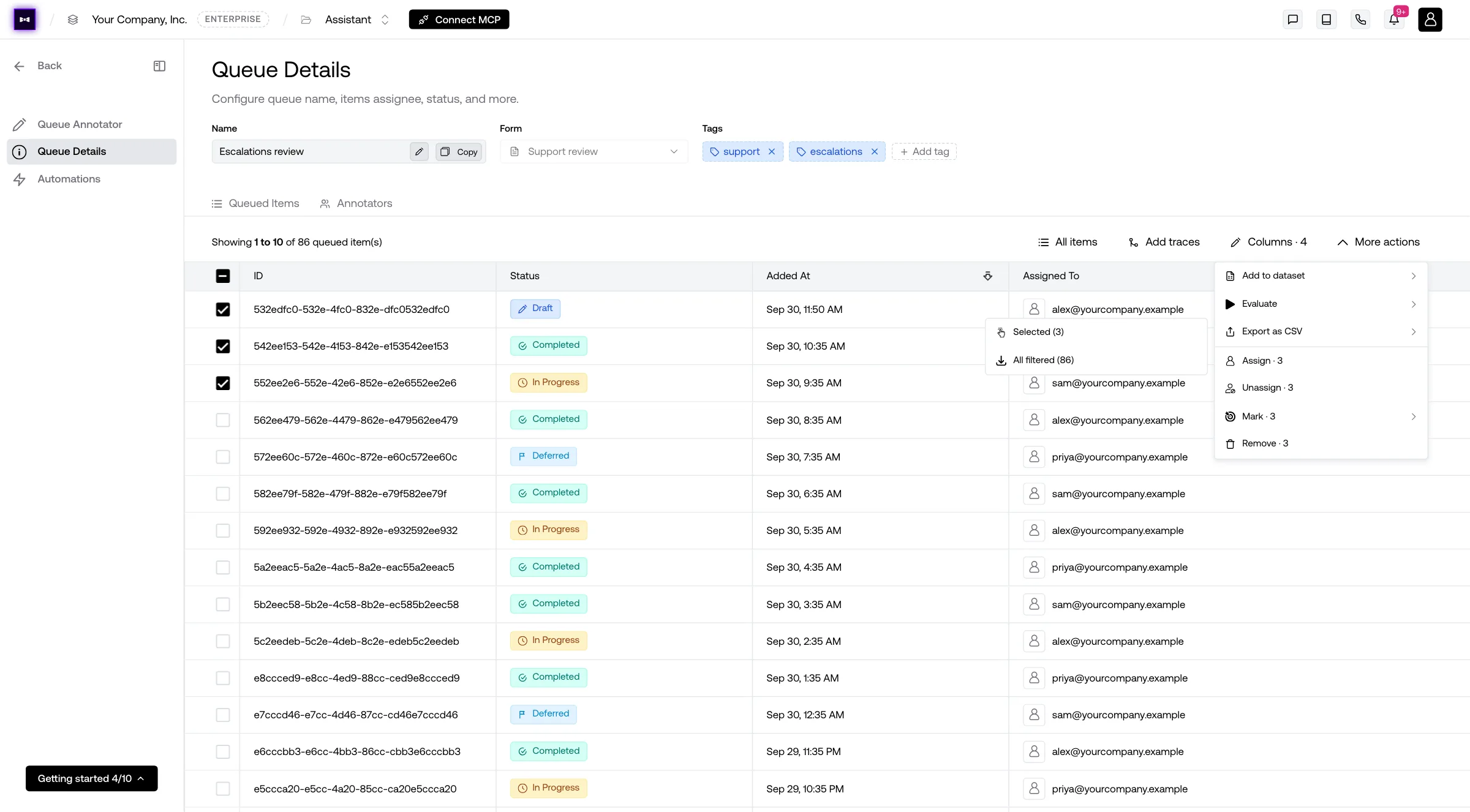
It offers two options:
- Selected — only the rows you've checked. Selections persist across pages, so you can curate a precise subset before exporting.
- All filtered — every row that matches your current status filter, even rows you haven't paginated to yet.
The CSV emits one row per (queue item × annotation). Items without any annotations still appear, so the export reflects the full state of the queue regardless of completion.
| Column type | Columns |
|---|---|
| Lookup keys | queueItemId, entityType, entityId |
| Queue lifecycle | status, completed, assignedToEmail, addedAt, comments |
| Annotation fields | annotationId, annotationName, annotationType, annotationRating, annotationExplanation, expectedOutput, expectedOutcome, annotatedBy, annotatedAt |
| Form fields | One column per field of the queue's form, with each reviewer's answer |
Auto-Ingestion
For ongoing review work, a queue ingestion task pulls matching data into a queue as it's produced and assigns it to reviewers — no manual "Add to queue" step required. It runs continuously or on a schedule, with filters, a sample rate, and single-user, round-robin, or random assignment, and it can run after a classifier so only traces with certain labels are routed.
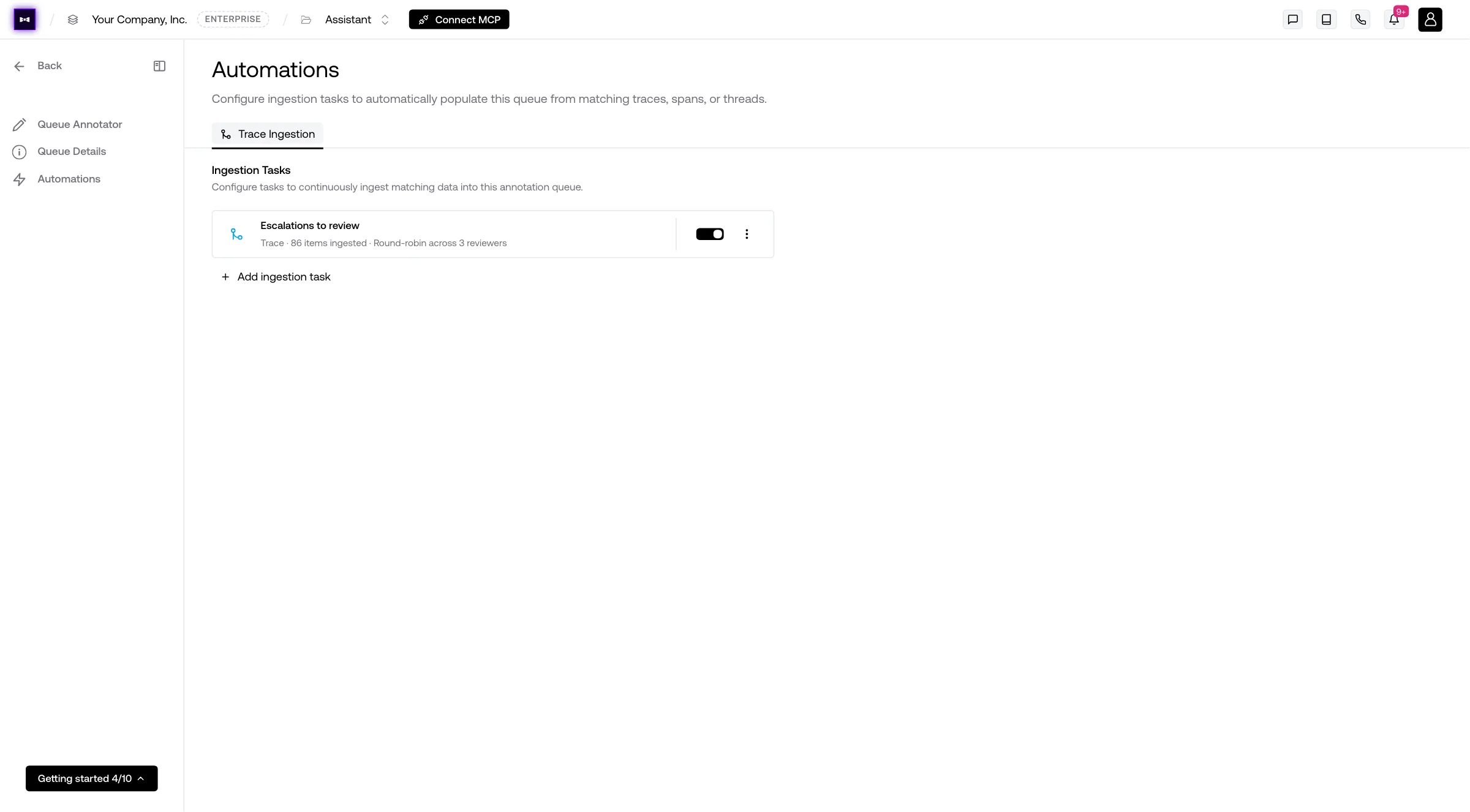
Open a queue and pick Automations in its left navigation to see its ingestion tasks, and click Add ingestion task to create one. Ingestion tasks belong to Workflows, where you can also manage them alongside your other tasks. See Queue Ingestion Task for every option and worked examples.
Eval Alignment
Compare metric evals to human annotations and validations, with a per-metric confusion-matrix breakdown.
Error Analysis
Discover failure patterns from human feedback and accept metric suggestions to detect them automatically.
Last updated on