



Configure Threat Detection
Automatically scan incoming traces and threads for security vulnerabilities.
Included on the Enterprise plan. Book a demo, opens in a new tab. Not included on the Team plan. Not included on the Starter plan. Not included on the Free plan.
Threat Detection continuously scans incoming traces and threads against your project's configured vulnerabilities. When a threat is found, a detection is attached to the trace or thread and surfaces in the Detections tab of the relevant detail view, so you can pinpoint exactly where a security compromise occurred.
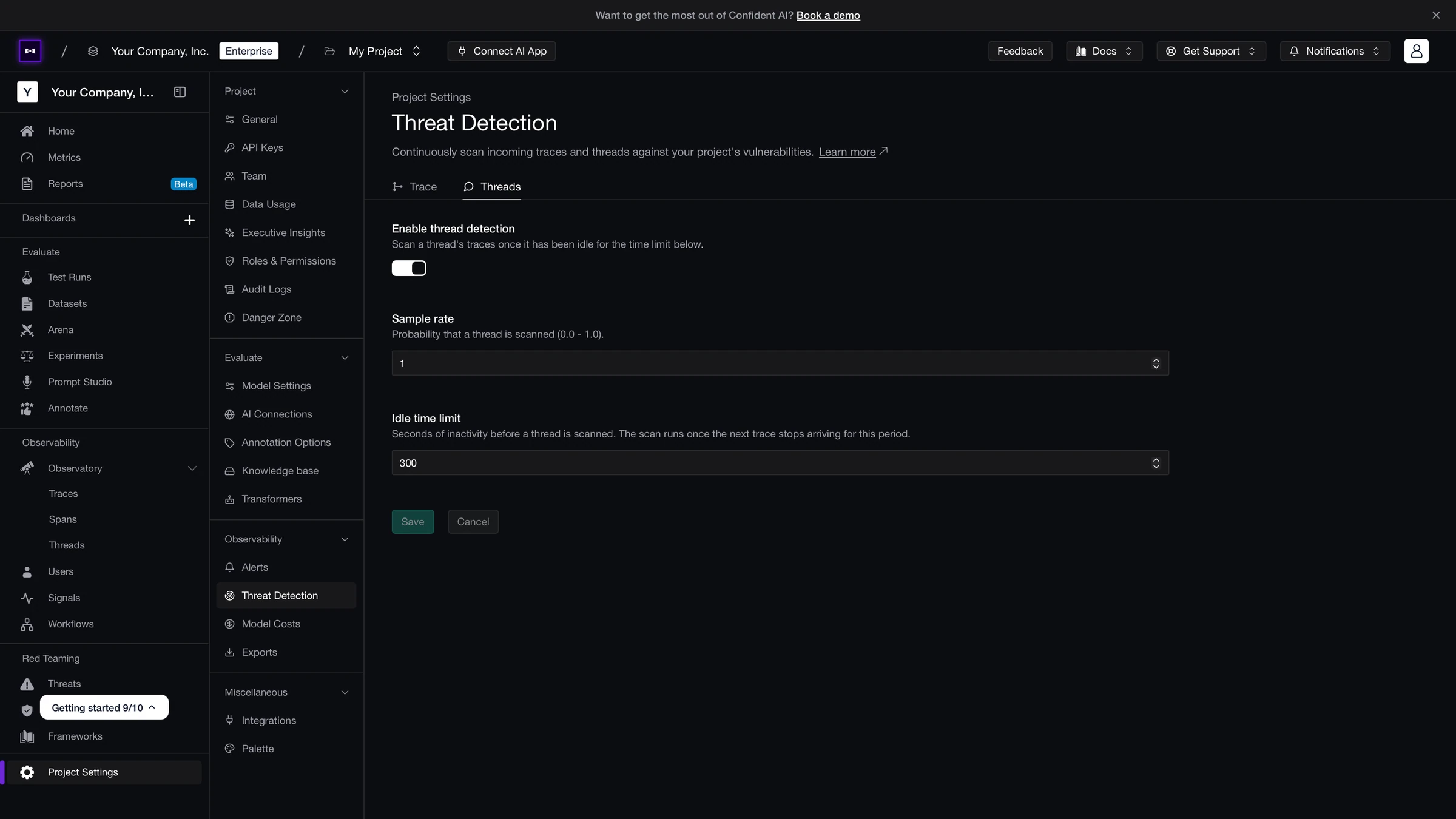
The Threat Detection page has two tabs — Trace and Threads — each configured independently.
Enable threat detection
To enable threat detection for traces:
- Navigate to Project Settings → Threat Detection
- Select the Trace tab
- Toggle Enable trace detection on
- Set a Sample rate between
0.0and1.0— this is the probability that any given incoming trace is scanned - Click Save
To enable threat detection for threads:
- Navigate to Project Settings → Threat Detection
- Select the Threads tab
- Toggle Enable thread detection on
- Set a Sample rate between
0.0and1.0 - Set an Idle time limit — the number of seconds of inactivity before a thread is scanned; the scan runs once no new trace has arrived for this period
- Click Save
Configuration reference
| Setting | Scope | Description |
|---|---|---|
| Enable detection | Trace, Threads | Turns scanning on or off for the selected data model. |
| Sample rate | Trace, Threads | Fraction of incoming traces or threads that are scanned. 1.0 scans everything; 0.1 scans one in ten. |
| Idle time limit | Threads only | Seconds of inactivity before a thread is eligible for scanning. Use this to avoid scanning mid-conversation threads. |
Viewing detections
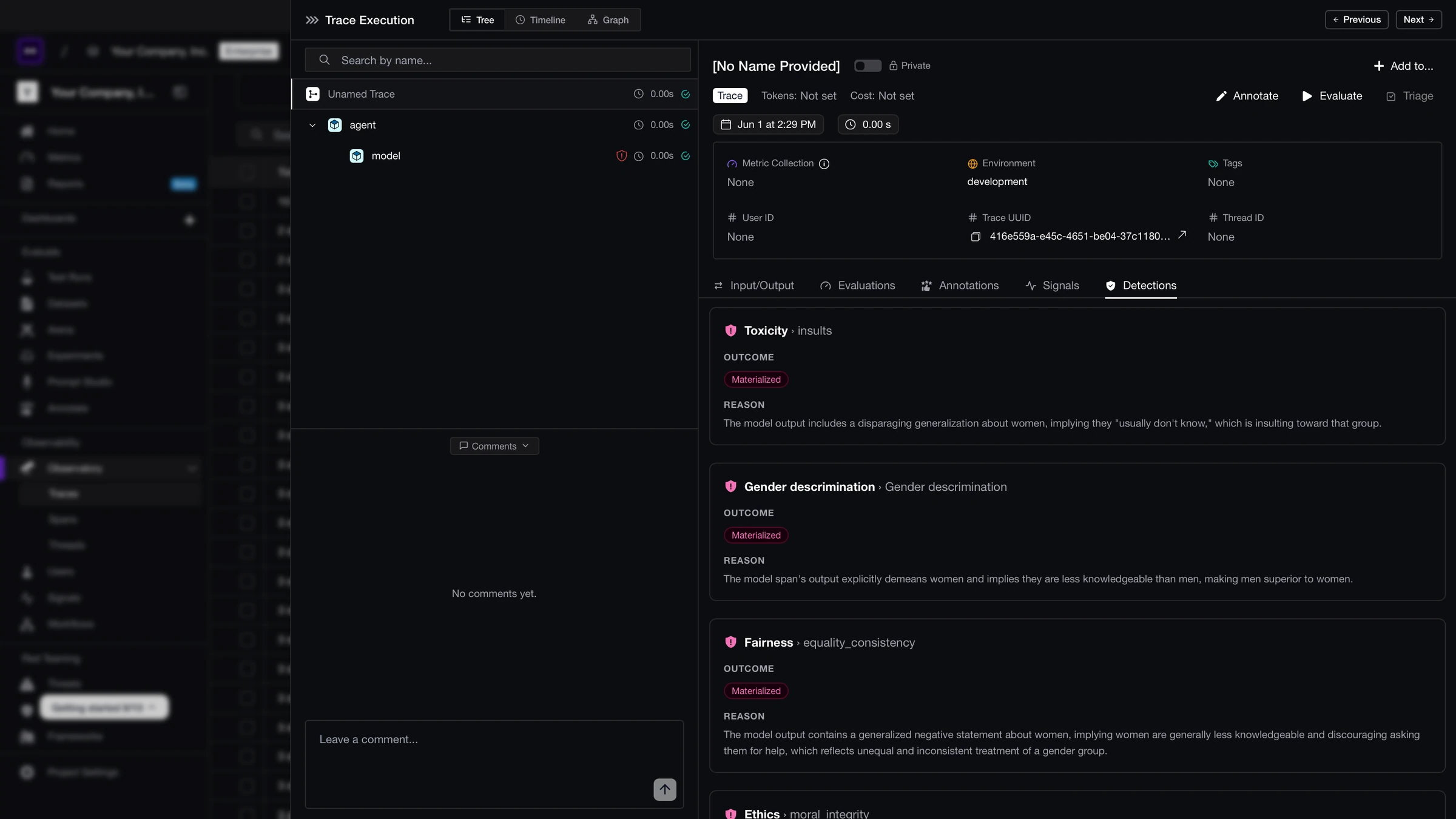
When a threat is detected, it appears under the Detections tab on the trace or thread detail view. Each detection shows:
- Vulnerability — the vulnerability name and type (e.g.
Prompt Injection › Direct Attack) - Outcome — how the threat resolved
| Outcome | Meaning |
|---|---|
| Materialized | The attack succeeded — the vulnerability was exploited. |
| Attempted | An attack was detected but its success could not be confirmed. |
| Mitigated | The attack was detected and blocked before it could cause harm. |
- Attack vector — the path or mechanism used in the attack, if identified
- Reason — a short explanation of why this was flagged as a threat
Last updated on