



Organization Roles & Permissions
Manage organization roles and permissions to control access levels for members across your organization.
Roles and permissions let you control what each team member can do at the organization level—across projects, billing, SSO, and other org-wide settings.
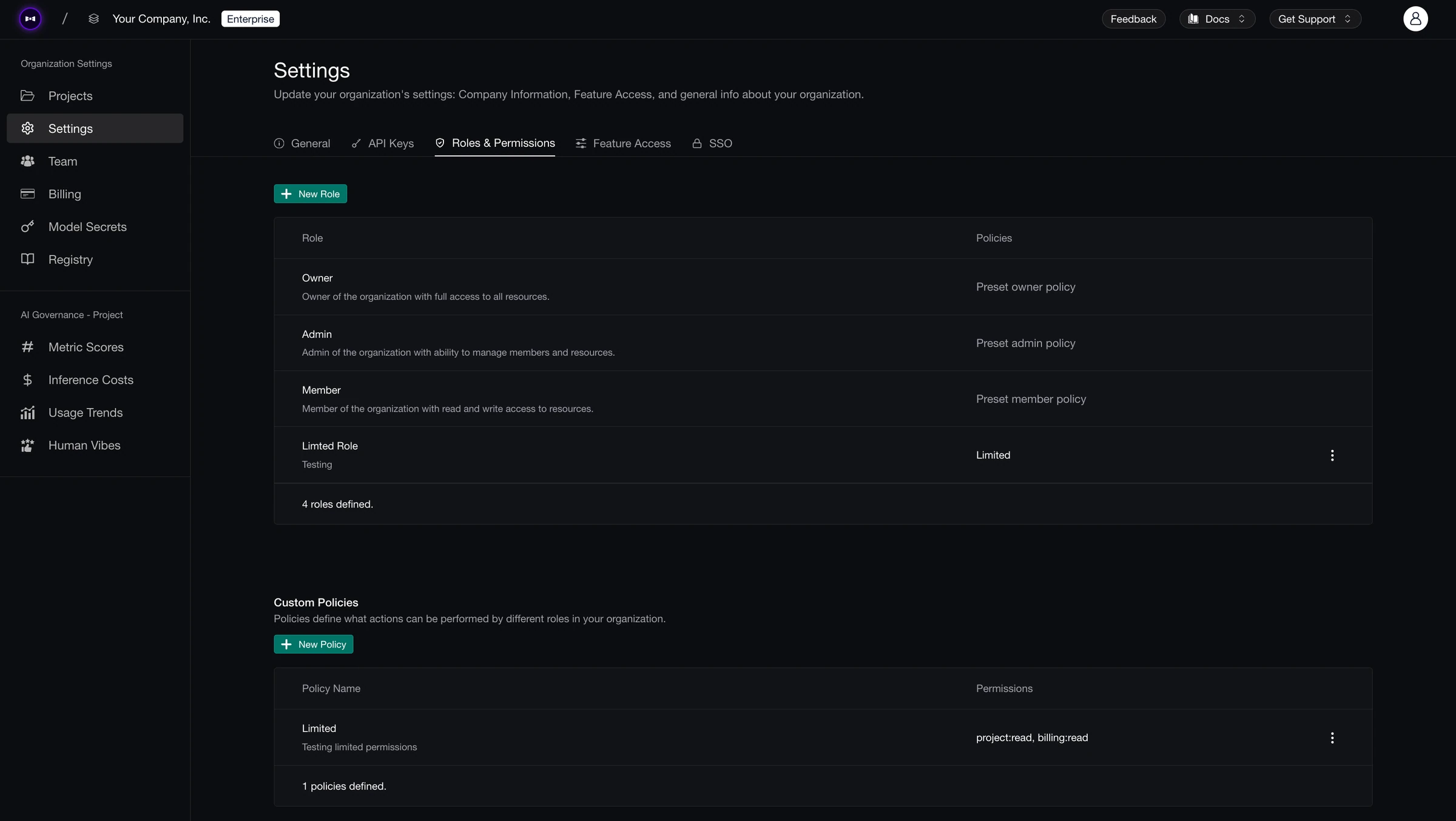
Default Roles
Every organization comes with three preset roles. Each preset role includes all organization permissions unless noted otherwise.
Owner
Full access to all resources in the organization, including transferring ownership and removing any member. No permission exclusions.
Admin
Includes all permissions. Admins can do everything an Owner can except remove an Owner or transfer ownership to themselves.
Member
Includes everything except project:create, project:manage, organization:manage, featureAccess:manage, sso:manage, apiKey:manage, user:manage, user:delete, billing:manage, modelCredential:manage, modelCost:manage, metric:manage, retentionConfig:manage, and iam:manage. Members cannot create projects. They have read access to org-wide settings but cannot change them, manage or remove users, or manage roles and policies.
Bypass Project Permissions
The organization permission project:manage gives unrestricted project access and controls two important behaviors:
- Seeing all projects — Users with
project:managecan see every project in the organization in the organization projects list. Users without it only see projects they are explicitly members of. - Bypassing project-level checks — When accessing a project, users with
project:manageat the organization level bypass that project's role-based permissions. They effectively have full access to the project regardless of their project role. This is how Owners and Admins can access and manage any project in the org.
Owners and Admins have project:manage by default. Members do not; custom roles can include or exclude it as needed.
Custom Roles
You can create custom roles to fit your organization's needs. To create a new role:
- Navigate to Organization Settings → Roles & Permissions
- Click New Role
- Enter a name and description for the role
- Assign a policy to the role
- Click Save
Custom Policies
Policies define the specific permissions a role has. Each permission controls access to a particular action at the organization level.
To create a custom policy:
- Navigate to Organization Settings → Roles & Permissions
- Scroll to Custom Policies and click New Policy
- Enter a name for the policy
- Select the permissions you want to include
- Click Save
Once created, you can assign your custom policy to any role.
Permission Syntax
Organization permissions follow the same resource:action format as project permissions. For example, billing:read grants read access to billing info, while user:manage allows managing organization users.
Actions:
read— View resources or settingsmanage— Create, update, or configure (varies by resource)create— Create new resources (used forproject)delete— Remove resources or users (used foruser)
Permission resources (organization):
project— Create projects;project:managealso controls visibility of all projects and bypassing project-level permissions (see above)organization— Organization settings and metadatafeatureAccess— Feature flags and plan-based accesssso— SSO providers and configurationapiKey— Organization API keysuser— Organization user management;user:managecontrols assigning roles to users, whileuser:deletecontrols removing users from the organizationbilling— Billing and subscriptionmodelCredential,modelCost,metric— Org-level model credentials, costs, and metricsretentionConfig— Data retention settings for traces, spans, test runs, datasets, and prompts (how long each is kept)iam— Organization roles and policies
Not every resource has every action. You can see the full list of permissions on the Roles & Permissions page in Organization Settings.
Rolling out across your org?Set up the controls your team needs before a wider rolloutTalk to usLast updated on