



AI Connections
Connect your AI app to run evaluations directly on the platform without code.
AI Connections let you run evaluations directly on the platform by connecting to your AI app via an HTTPS endpoint. Instead of writing code, you can trigger evaluations with a click of a button—Confident AI will call your endpoint with data from your goldens and parse the response.
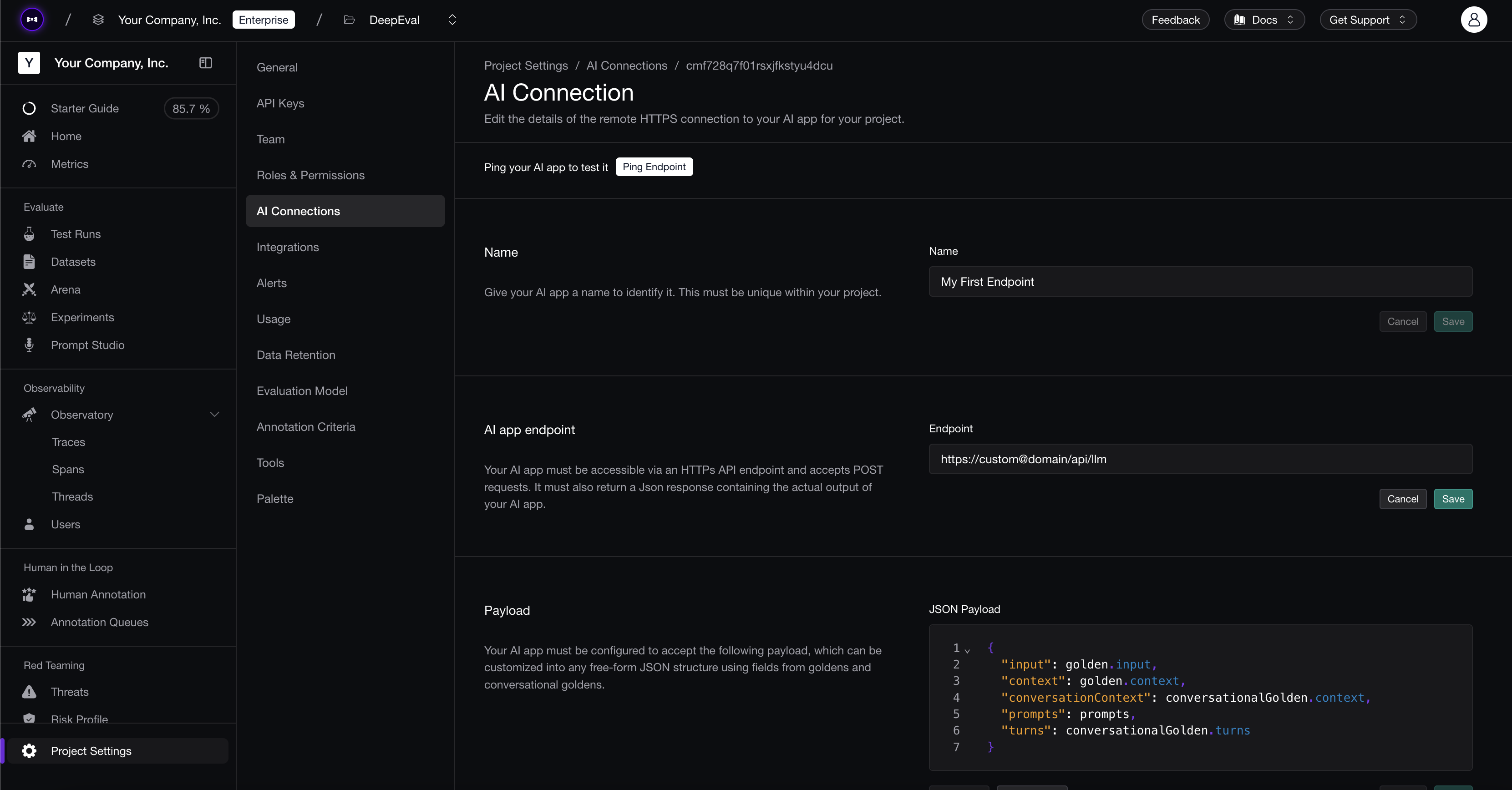
Setting Up an AI Connection
To create an AI connection:
- Navigate to Project Settings → AI Connections
- Click New AI Connection
- Give it a unique identifying name
- Click Save
Configuring Your Endpoint
Point your AI connection at your AI app's HTTPS endpoint. It must accept POST requests and return a response containing the actual output of your AI app.
Choose a response mode based on how your endpoint responds:
- HTTP Response: returns a single response containing the actual output (default).
- HTTP Streaming: returns a stream of newline-delimited chunks.
- SSE Streaming: returns a stream of Server-Sent Events.
For streaming endpoints, see Streaming to configure chunk formats, SSE event names, and accumulate mode. For agents that take minutes or hours to respond, see Async Responses to acknowledge each request immediately and post results back later.
Payload
The payload is the request body Confident AI sends to your endpoint when it calls it. JSON mode lets you map available variables into a JSON structure, while the Code editor lets you write a Python function for conditional logic, data transformation, or full programmatic control over the request body.
JSON mode lets you define a payload using available variables. You can nest values to match your endpoint's expected structure.
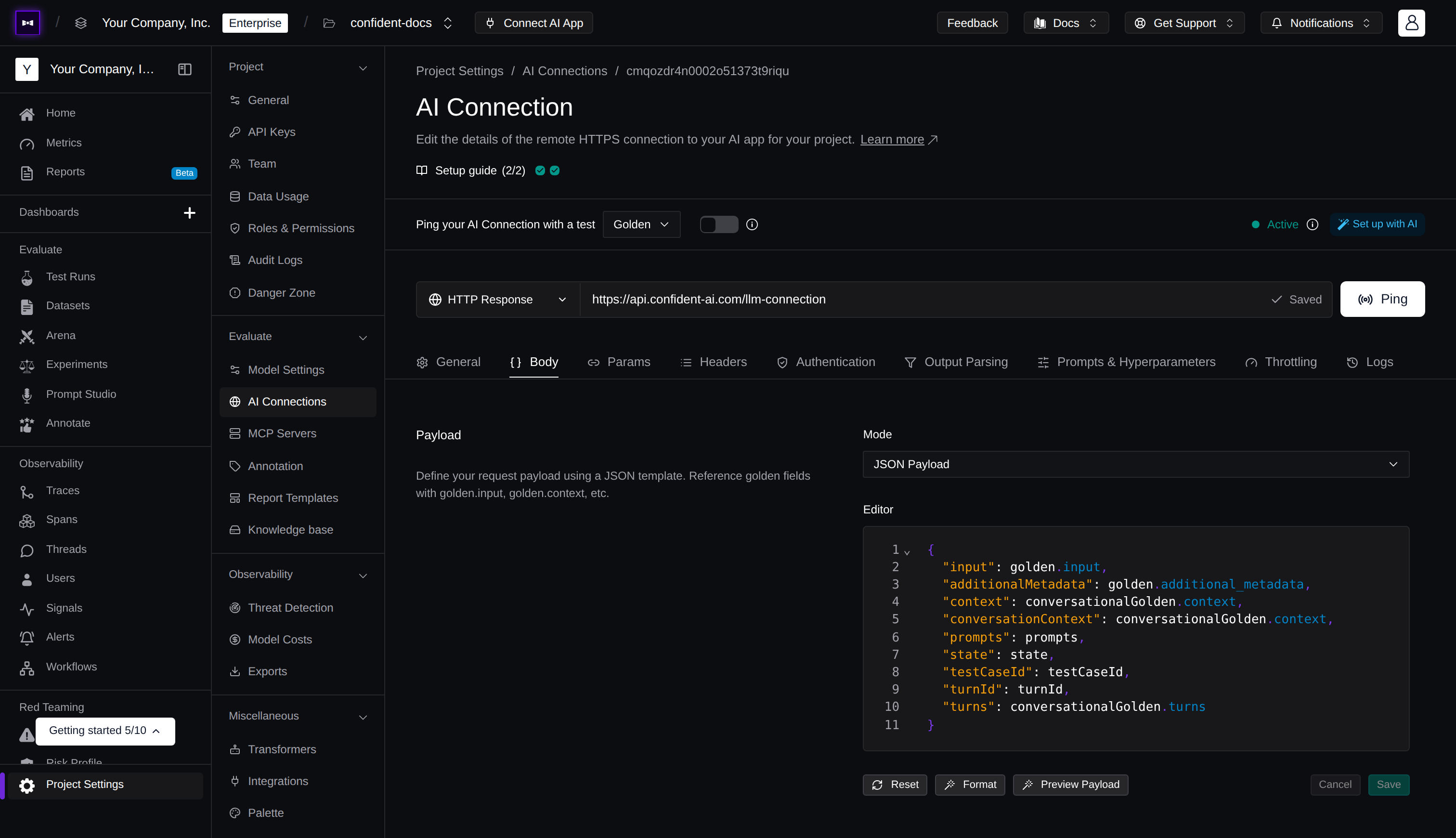
Available variables:
| Variable | Description | Type |
|---|---|---|
golden.input | The input from your golden | string |
golden.actual_output | The actual output from your golden | string |
golden.expected_output | The expected output from your golden | string |
golden.retrieval_context | The retrieval context from your golden | string[] |
golden.context | The context from your golden | string[] |
golden.expected_tools | The expected tools from your golden | ToolCall[] |
golden.tools_called | The tools called from your golden | ToolCall[] |
golden.additional_metadata | Additional metadata from your golden | object |
conversationalGolden.turns | Turn history for multi-turn evals | Turn[] |
conversationalGolden.context | Context for conversational goldens | string[] |
conversationalGolden.scenario | Scenario for conversational goldens | string |
conversationalGolden.expected_outcome | Expected outcome for conversational goldens | string |
conversationalGolden.user_description | User description for conversational goldens | string |
conversationalGolden.additional_metadata | Additional metadata for conversational goldens | object |
prompts | A dictionary of prompts | object |
hyperparameters | A dictionary of hyperparameter key-value pairs | object |
testCaseId | Unique identifier for linking traces to test cases | string |
turnId | Unique identifier for linking traces to turns | string |
state | An object to keep state for multi-turn simulations | object |
Use golden.* variables for single-turn evaluations and conversationalGolden.* variables for multi-turn evaluations. See Prompts for details on how to use the prompts dictionary, and Hyperparameters for passing hyperparameters to your endpoint.
Example payload:
{
  "input": golden.input,
  "context": golden.context,
  "conversationalContext": conversationalGolden.context,
  "prompts": prompts,
  "hyperparameters": hyperparameters,
  "turns": conversationalGolden.turns
}Code mode gives you a built-in Python editor where you define a generate_payload function. The function receives a golden argument (typed as Union[Golden, ConversationalGolden]) along with prompts, hyperparameters, testCaseId, turnId, and state—use isinstance checks to handle single-turn and multi-turn goldens differently.
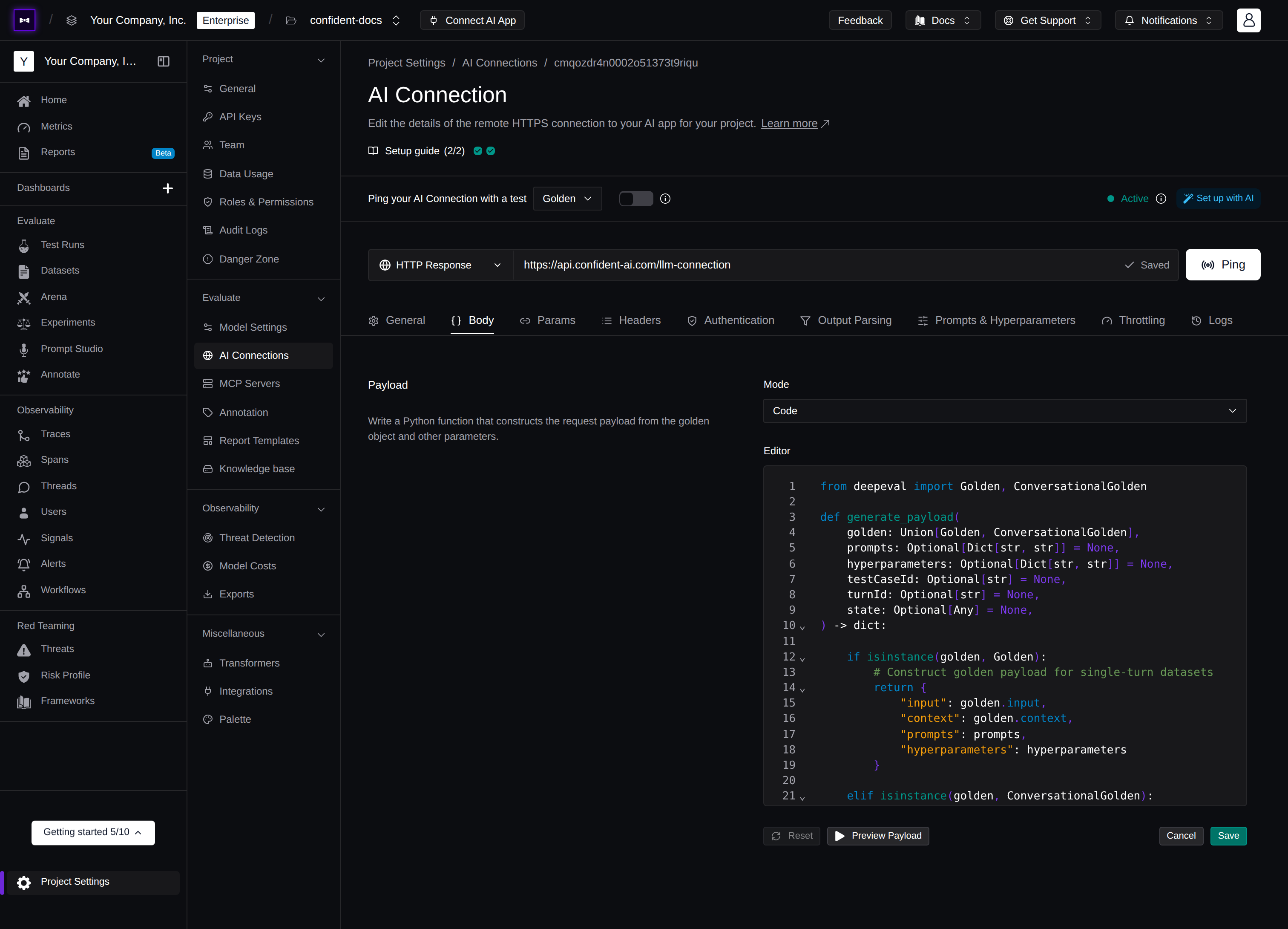
Available golden attributes when golden is a Golden:
| Variable | Description | Type |
|---|---|---|
golden.input | The input from your golden | string |
golden.actual_output | The actual output from your golden | string |
golden.expected_output | The expected output from your golden | string |
golden.retrieval_context | The retrieval context from your golden | string[] |
golden.context | The context from your golden | string[] |
golden.expected_tools | The expected tools from your golden | ToolCall[] |
golden.tools_called | The tools called from your golden | ToolCall[] |
golden.additional_metadata | Additional metadata from your golden | object |
Available golden attributes when golden is a ConversationalGolden:
| Variable | Description | Type |
|---|---|---|
golden.turns | Turn history for multi-turn evals | Turn[] |
golden.context | Context for conversational goldens | string[] |
golden.scenario | Scenario for conversational goldens | string |
golden.expected_outcome | Expected outcome for conversational goldens | string |
golden.user_description | User description for conversational goldens | string |
golden.additional_metadata | Additional metadata for conversational goldens | object |
Additional parameters:
| Parameter | Description | Type |
|---|---|---|
prompts | A dictionary of prompts | Optional[Dict[str, str]] |
hyperparameters | A dictionary of hyperparameter key-value pairs | Optional[Dict[str, str]] |
testCaseId | Unique identifier for linking traces to test cases | Optional[str] |
turnId | Unique identifier for linking traces to individual turns in multi-turn evals | Optional[str] |
state | An object to keep state for multi-turn simulations | Optional[Any] |
from deepeval import Golden, ConversationalGolden

def generate_payload(
    golden: Union[Golden, ConversationalGolden],
    prompts: Optional[Dict[str, str]] = None,
    hyperparameters: Optional[Dict[str, str]] = None,
    testCaseId: Optional[str] = None,
    turnId: Optional[str] = None,
    state: Optional[Any] = None,
) -> dict:

    if isinstance(golden, Golden):
        return {
            "input": golden.input,
            "context": golden.context,
            "prompts": prompts,
            "hyperparameters": hyperparameters
        }

    elif isinstance(golden, ConversationalGolden):
        return {
            "turns": golden.turns,
            "conversationContext": golden.context,
            "prompts": prompts,
            "hyperparameters": hyperparameters
        }
Whatever the function returns is what gets sent to your endpoint as the POST body.
Output Parsing
Once your endpoint returns a response, Confident AI needs to know how to pull the relevant values out of it. Use key paths to point at specific values in your JSON response, or a transformer when you need custom logic to extract them:
- Actual Output Key Path: where to find the actual output (required)
- Retrieval Context Key Path: where to find the retrieval context (optional, for RAG metrics)
- Tool Call Key Path: where to find the tools called (optional, for tool-related metrics)
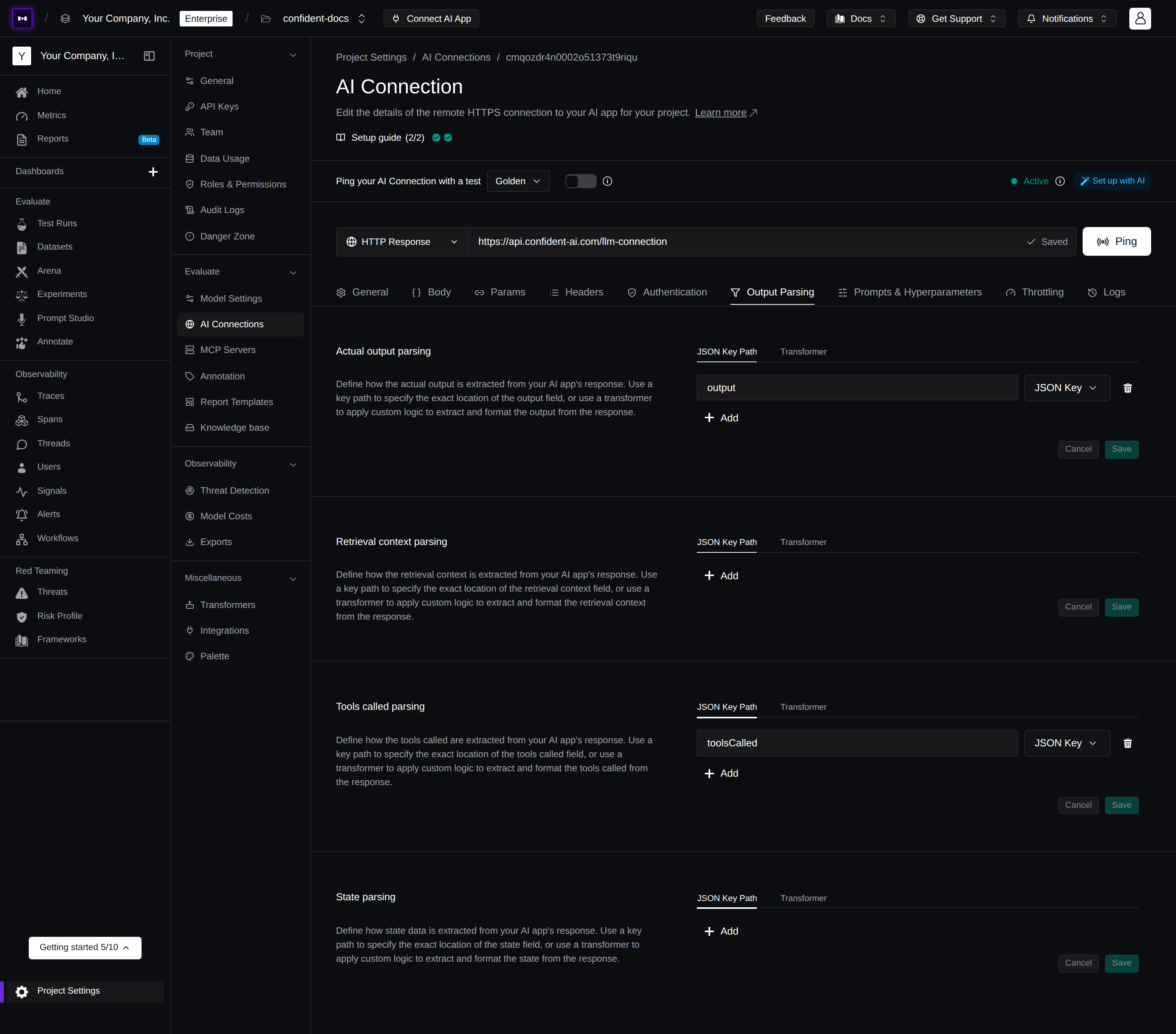
Actual Output Key Path
A list of strings or integers representing the path to the actual_output value in your JSON response. Use strings for JSON keys and integers for array indices. This is required for evaluation to work.
For example, if your endpoint returns:
{
  "response": {
    "output": "Hello, world!"
  }
}
Set the key path to ["response", "output"].
For nested arrays, use integers to specify the array index. For example, if your endpoint returns:
{
  "response": {
    "output": {
      "content": [{ "text": "Hello, world!" }]
    }
  }
}
Set the key path to ["response", "output", "content", 0, "text"].
Retrieval Context Key Path
A list of strings or integers representing the path to the retrieval_context value in your JSON response. Use strings for JSON keys and integers for array indices. This is optional and only needed if you're using RAG metrics. The value must be a list of strings.
For example, if your endpoint returns:
{
  "response": {
    ...
    "retrieval_context": ["context1", "context2"]
  }
}
Set the key path to ["response", "retrieval_context"].
Tool Call Key Path
A list of strings or integers representing the path to the tools_called value in your JSON response. Use strings for JSON keys and integers for array indices. This is optional and only needed if you're using metrics that require a tool call parameter. The value must be a list of ToolCall.
For example, if your endpoint returns:
{
  "response": {
    ...
    "tools_called": [
      {
        "name": "get_weather",
        "description": "Get weather for a location",
        "reasoning": "User asked about the weather in San Francisco",
        "output": "Sunny, 72°F",
        "inputParameters": {"location": "San Francisco"}
      }
    ]
  }
}
Set the key path to ["response", "tools_called"].
Transformers
When a key path isn't enough—for example, your endpoint returns a non-standard format that needs custom logic—use a transformer to extract the actual output with your own Python code.
Switch any parser from JSON Key Path to Transformer to select a transformer instead of a key path:

Add your own transformers by navigating to Project Settings → Transformers and clicking Create Transformer. See Transformers for details.
Headers
Add any custom headers your endpoint requires as key-value pairs—such as API keys, bearer tokens, or a Content-Type. Whatever you add here is sent with every request Confident AI makes to your AI app.
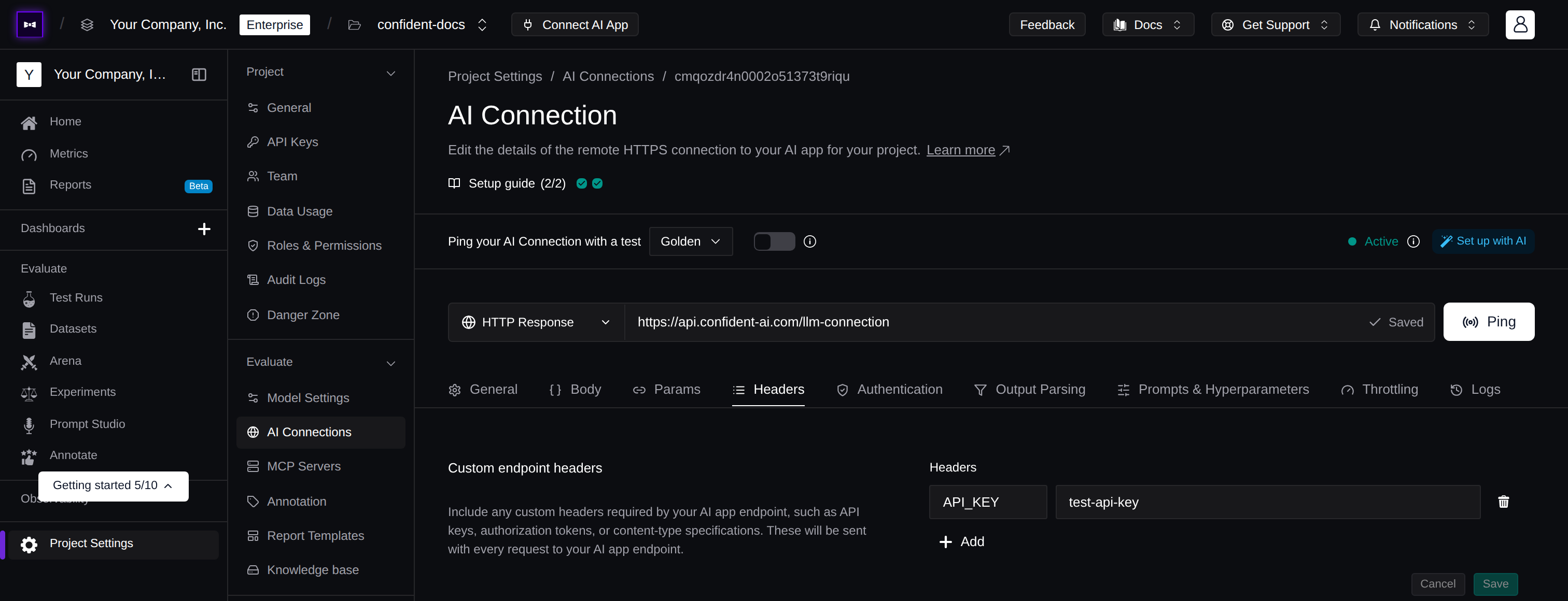
Common headers you might set:
Authorization— a static API key or bearer token (e.g.Bearer sk-...)Content-Type— the format of the request body (e.g.application/json)- A custom header your endpoint expects (e.g.
X-API-Key)
Testing Your Connection
Click Ping Endpoint to verify everything is set up correctly. You should receive a 200 status response—if not, check the error message and adjust your configuration accordingly.
✅ Done. Your AI connection is ready to run evaluations.
Next Steps
Now that your AI connection is set up, dive into the pieces that make it production-ready:
Prompts & Hyperparameters
Attach prompt versions and hyperparameters, logged with every test run.
Streaming
Stream output over HTTP Streaming or SSE, with event names and accumulate mode.
Async Responses
Evaluate long-running agents by acknowledging each request and posting results back later.
Authorization
Secure requests with a secrets manager and Auth0 or HMAC authentication.
Throttling & Retries
Tune request concurrency, timeouts, and retries for endpoint requests.
Multi-Generation
Sample your app multiple times per golden for statistically rigorous test runs.
Multi-Turn State
Persist information across turns during multi-turn simulations.
Linking Traces
Link test cases and turns to their traces for full observability.
Confident Agent
Reach internal endpoints behind firewalls without opening inbound ports.
Last updated on