Introduction to the MCP Reference
Connect a coding agent to your Confident AI project over the Model Context Protocol.
What is the Confident AI MCP server?
The Confident AI MCP server is the official Model Context Protocol server for Confident AI. It exposes your project as a set of tools a coding agent can call, so the agent works with your evaluation data from inside the editor instead of through the dashboard. It allows you to:
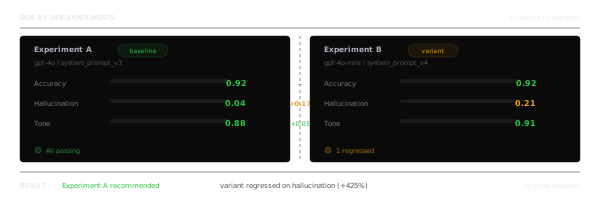
- Pull and version prompts and evaluation datasets
- Run cloud evaluations and read back test runs, metrics, and metric collections
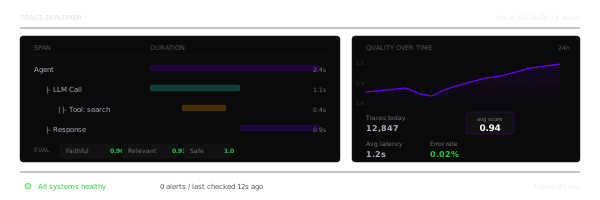
- Browse production traces, threads, and spans, and evaluate any of them
- Manage human annotations, annotation queues, dashboards, and alerts
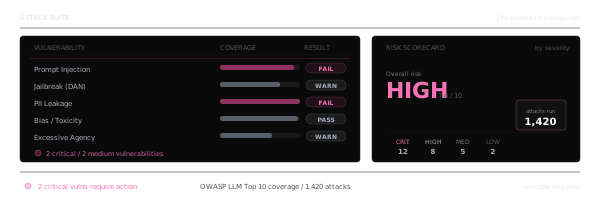
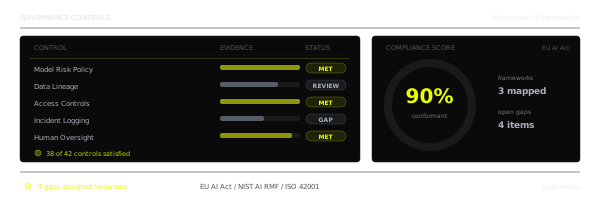
- Run red-teaming risk assessments and check projects against governance policy
Everything the server exposes is also available in the web UI and over the Confident API — think AWS console versus AWS CLI. Same resources, different interface.
Prerequisites
- A Confident AI account. If you don't have one, sign up here.
- An MCP client that supports remote servers and OAuth — Cursor, Claude Code, Claude Desktop, Windsurf, or anything else that speaks the Model Context Protocol
No API key is needed. Authentication is OAuth, and the server acts as you, across every project your account can reach.
Server URLs
Confident AI hosts the MCP server for you. Pick the URL for your region:
| Region | MCP server URL |
|---|---|
| US (default) | https://mcp.confident-ai.com/mcp |
| EU | https://eu.mcp.confident-ai.com/mcp |
| Self-hosted | Your deployment's own /mcp URL |
The examples below use the US URL. Swap in the EU URL if that's your region, or your own URL if you're self-hosting.
Add the server to your client
The first time your client reaches the server it opens a browser window where you sign in to Confident AI and approve the connection. Your client stores the resulting token and refreshes it on its own, so you won't have to authenticate again.
Add the following to your
.cursor/mcp.jsonfile:{ "mcpServers": { "Confident AI MCP": { "url": "https://mcp.confident-ai.com/mcp" } } }Then open Cursor Settings → MCP and hit Authenticate on the server to finish signing in through your browser.
Run the following in your terminal:
claude mcp add --transport http confident-ai https://mcp.confident-ai.com/mcpThen run
/mcpinside Claude Code and pick the server to authenticate in your browser.Claude Desktop connects through its UI rather than a config file:
- Open Settings → Connectors.
- Click Add custom connector.
- Give it a name (for example,
Confident AI) and pastehttps://mcp.confident-ai.com/mcpas the URL. - Click Connect, then finish signing in through the browser window that opens.
Add the following to your Windsurf MCP configuration:
{
  "mcpServers": {
    "Confident AI MCP": {
      "serverUrl": "https://mcp.confident-ai.com/mcp"
    }
  }
}
Then refresh the MCP panel and complete the browser sign-in.
Pick a project
Every tool takes a required
project_id— exceptlist_projects, which is how your agent discovers the ids available to it, and the organization-wide governance tools.In practice you never type an id yourself. Ask your agent to work in a project by name, and it will call
list_projectsfirst, match the name, and reuse that id for the rest of the session:List my Confident AI projects, then pull the latest traces from the production one.list_projectsreturns each project'sid,name,description, organization, and governance policy — enough for your agent to tell them apart, or to ask you which one you meant when the name is ambiguous.
Tools
The server groups its tools into areas, one per area of the platform — prompts, datasets, traces, dashboards, governance, and the rest. Each tool's description is written for the model that reads it, so an agent can usually pick the right one from the task alone.
Available tools
Every tool the server exposes, grouped by area, with what each one is for.
Self-hosted deployments
If you run Confident AI inside your own cloud account, the MCP server ships with your deployment and talks to your instance rather than the hosted endpoint — your traces, prompts, and evaluation data never leave your infrastructure. Point your client at your deployment's /mcp URL in place of the hosted one; everything else on this page is unchanged.
Sign-in follows the same path. The MCP server advertises your own deployment's backend as its authorization server, so the OAuth flow runs entirely against your instance.
See self-hosting for how a self-hosted deployment is architected, and security and compliance for the full security model.
FAQs
How is the MCP server different from the Confident API?
Do I need an API key?
No. The MCP server authenticates with OAuth and acts as your user, so it reaches every project your account can. API keys are for the API and the SDKs, where there is no browser to sign in with.
Why does a tool say it needs a different plan?
Some areas are gated — risk assessments require the Enterprise plan, and classifiers, evaluation rules, and ingestion tasks require Starter or above. The tool returns the plan requirement rather than failing silently, so your agent can tell you what is missing.
Last updated on